Admin Dashboard
Docs version v1 (main)Nauthera is pre-1.0, in a design-partner programUpdated
The server ships an admin dashboard for every organization. It reads the organization's
OIDC clients, identity providers, users, sessions, audit log, threat signals, email relay
and the problems operators report. Its writes are user management: creating and inviting
users; suspending, blocking, reactivating and unlocking them; emailing a reset link or
requiring a new password; deleting them; forgetting their remembered browsers; granting
and revoking their roles; ending their sessions; and sending a test email. Editing a
user's profile, and managing organizations and clients, are done through the
admin API and the gRPC AdminService.
Still planned lists the work tracked under initiative #502.
Where it is served
The binary embeds the dashboard and serves it on the public listener, on the issuer's own host:
| Organization | Dashboard address |
|---|---|
| Main org | https: |
Org acme | https: |
There is nothing to deploy or turn on. An ingress that sends the issuer's host to the
server serves the dashboard too. Every dashboard page is served with no-store and its own
Content-Security-Policy: scripts and connections from its own origin only, under Trusted
Types, and no framing. The dashboard calls the admin API at /v1/admin/… on the same
origin.
Theme
The dashboard wears the organization's branding: the organization's default branding
(spec.branding on its Organization), with the branding of its reserved
{slug}-admin-console client laid over it field by field (see
Branding). An organization's own administrators, signed in at its
issuer, see its whole theme: colors, typography, radius and the other design tokens, its
logo, name and light or dark mode. A platform administrator who opens another
organization sees only a reduced, contrast-checked part of that organization's theme:
its colors, typography and radius. In both cases the banner naming the
organization being administered, confirmation dialogs and destructive actions keep
styles no theme can override, and the viewer's own light, dark or system choice wins over
the brand's mode. The dashboard never edits branding.
Signing in
The dashboard signs administrators in with their organization's reserved
{slug}-admin-console client:
- The authorization code flow with PKCE, at the organization's own issuer. The client's
redirect URI is
{issuer}/admin/callbackand its post-logout address is{issuer}/.admin/ signed-out - Access tokens are DPoP-bound to a key the page cannot export, and held only in memory,
never in browser storage. A reload, or an expired token, signs in again with a silent
prompt=noneredirect that returns to the same address. - Every authorization asks for a sign-in no older than 12 hours (
max_age). An older provider session asks for the password again. - The sign-in follows the organization's second-factor policy, passwordless sign-in included, since the console has no policy of its own. It is never spared the second factor on a remembered browser or in a trusted network zone: a step-up must prove a fresh factor.
- Signing out ends the provider session too, through RP-initiated logout, and lands on the signed-out page. Every other open dashboard tab is signed out with it, and so is a dashboard left without input for 30 minutes.
- Recent sign-in. Some actions need a sign-in no older than
auth.admin.max_auth_age(default15m, at most24h), and a second factor when the deployment requires one (mfa.required). The server answers an older token with an RFC 9470 step-up challenge. The dashboard then signs the administrator in again and repeats the action.
Open the dashboard at the organization's address and choose Sign in. Only people who hold an admin role can use it; see Who may use it.
The screens
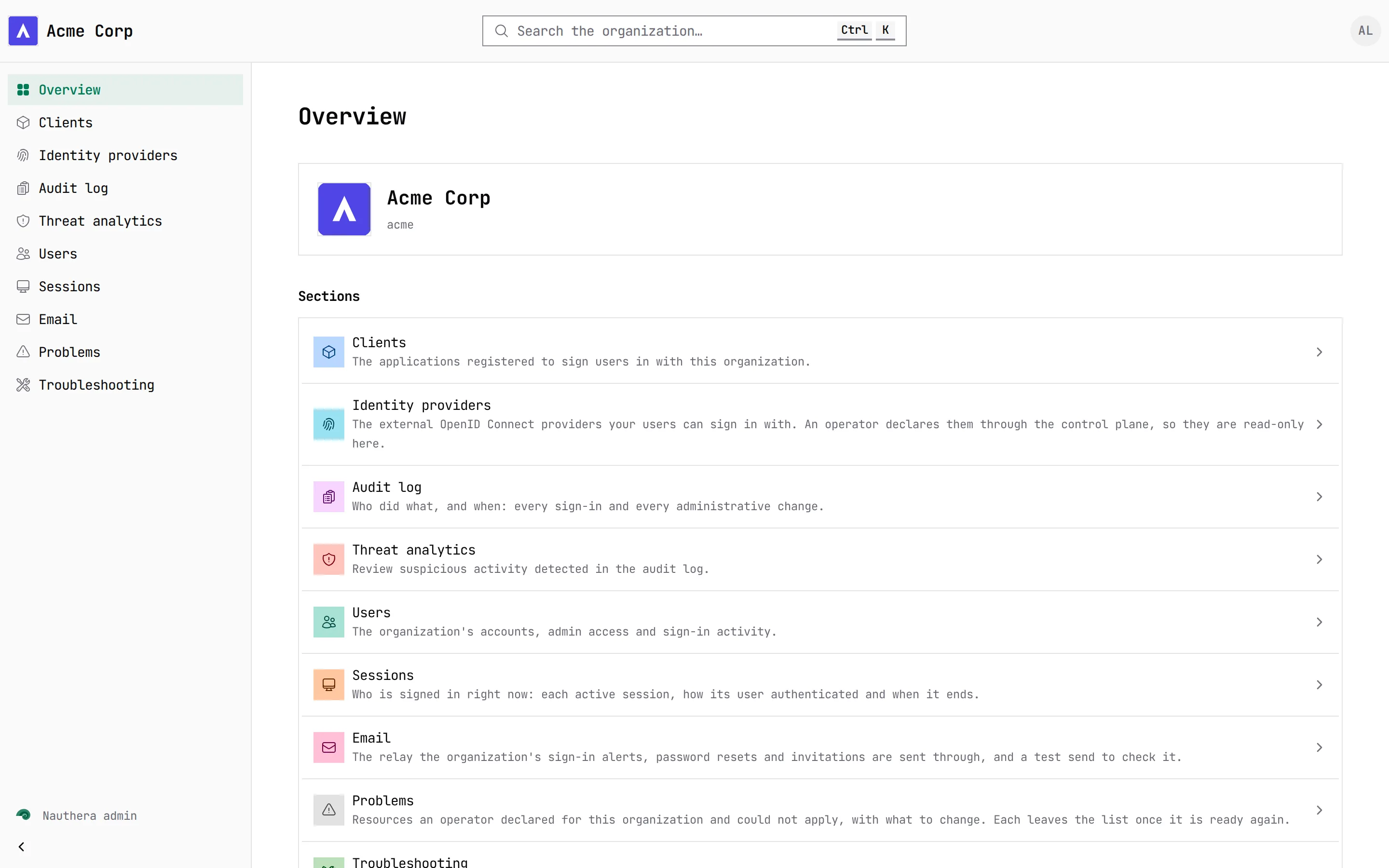
Every page of an organization lives at …/admin/orgs/{slug}/…. The frame around them has
the navigation, a banner naming the organization being administered, and a search that
finds pages, users and clients by name or ID, and audit events by ID, request ID or trace
ID. Trace IDs are offered only when the server records traces. The account menu sets the
language (English, German or French), the time zone (local or UTC) and light or dark
appearance, and signs out. Pages that read data over time have a time-range control:
presets from the last 15 minutes to the last 90 days, or a custom range of up to 90 days,
with auto-refresh every 30 seconds to 15 minutes. The range, filters and page are kept
in the address, so a link opens the same view. Lists page forward and back, with a button
back to the first page.
| Screen | What it shows and does |
|---|---|
| Overview | The organization's name, issuer and discovery document, then Needs attention: the threat signals past their threshold over the last 24 hours and the accounts locked now, each linked to what it counted, or an all-clear. For a platform administrator viewing the main org, it also warns when requests seem to arrive through a reverse proxy the server does not trust, or when the trusted proxy ranges are wider than the proxies seen, with the Helm values to fix it. Then Sign-in activity: sign-ins, failed sign-ins, new users, active sessions, second-factor adoption and locked accounts against the previous period, sign-ins by outcome over time, and why sign-ins failed. Then the users by last sign-in and status and the clients by authentication method, and links to every section. |
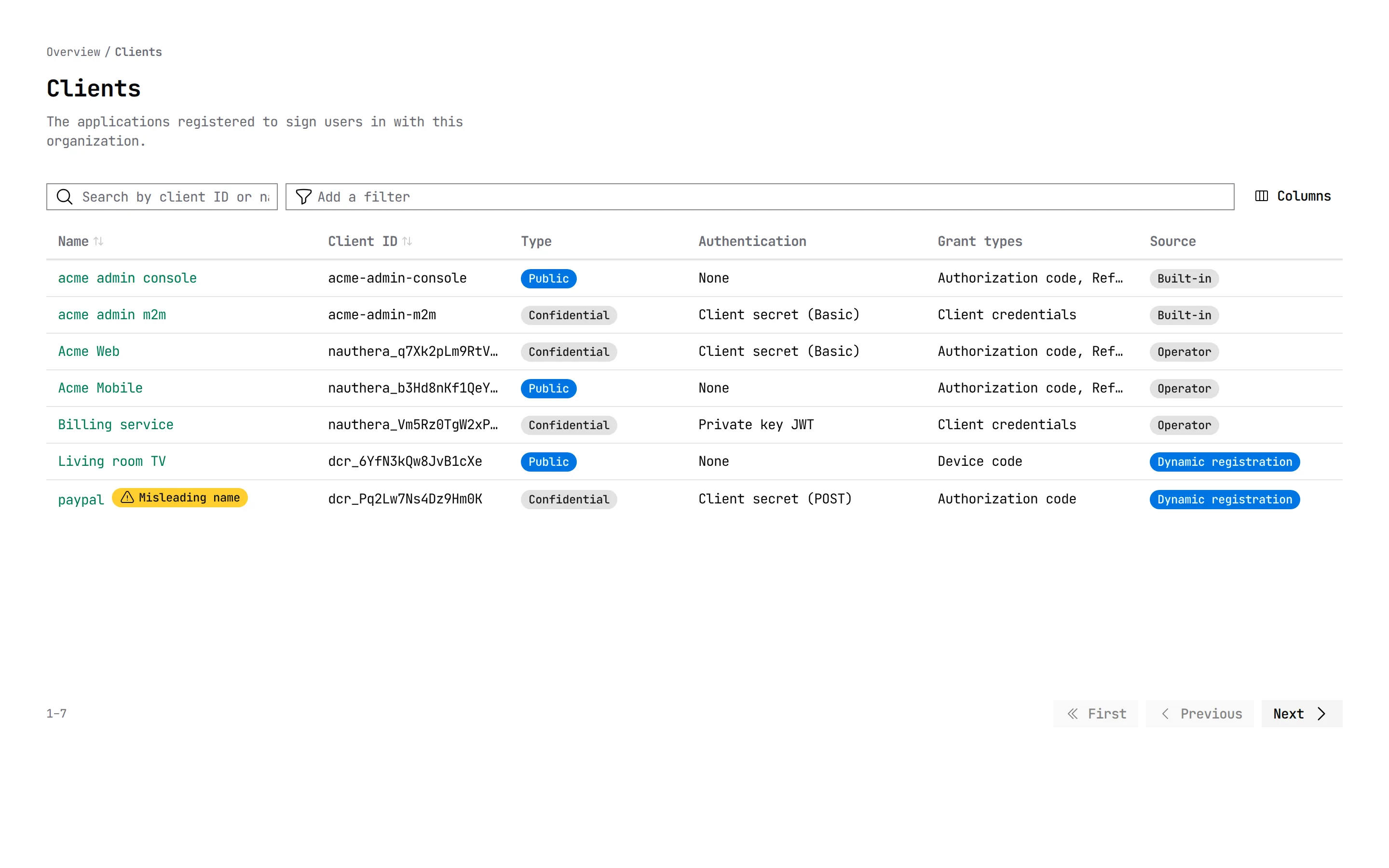
| Clients | Every OIDC client registered in the organization, whether by the operator, dynamic registration or the server itself. Search by client ID or name, and filter by type, authentication method, grant type and source. A display name built to mislead (invisible or control characters, reordering, markup, padding) is flagged. |
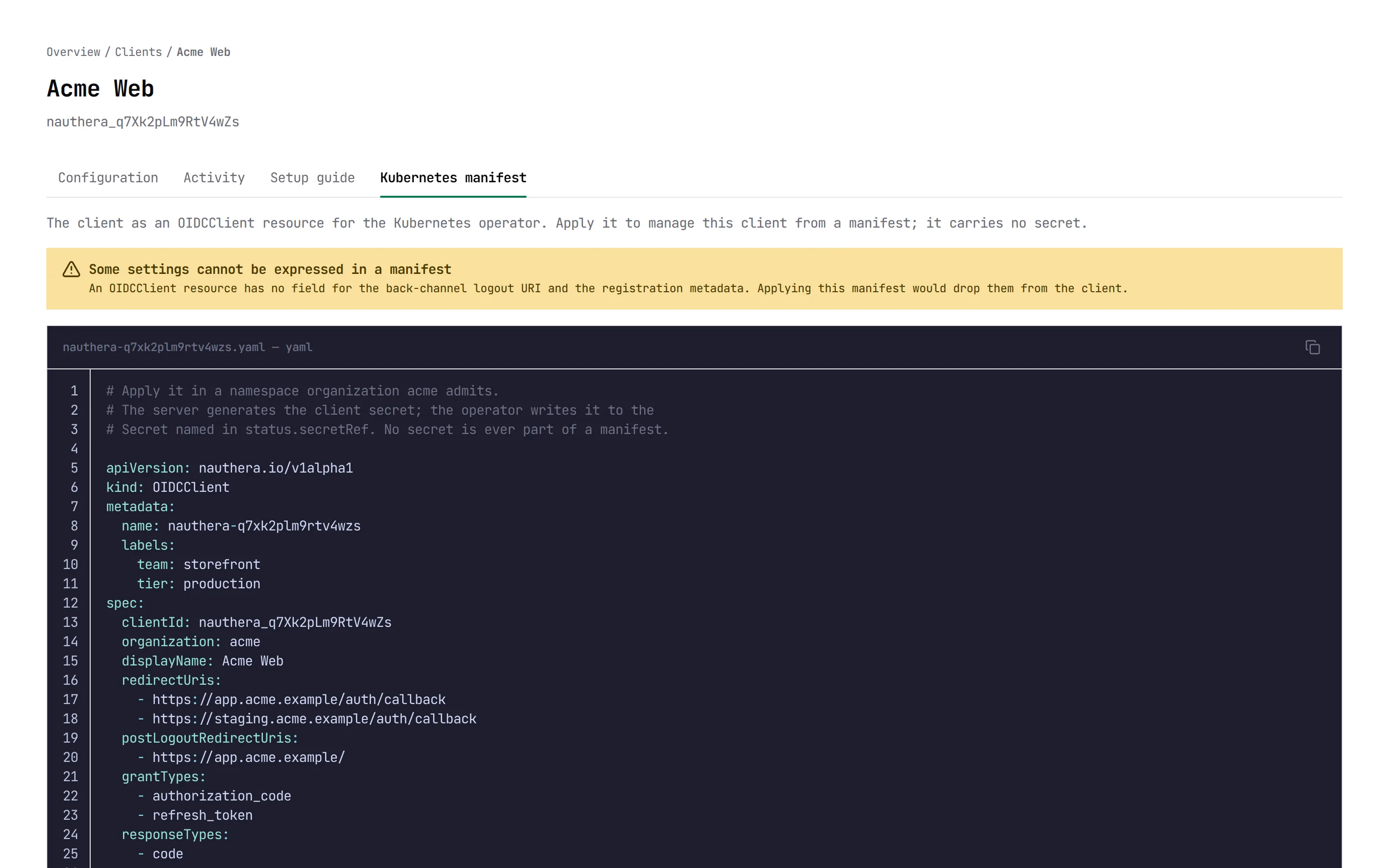
| Client details | One client, read-only, in four tabs. Configuration: identity, issuer and discovery document, redirect URIs, grants and scopes, authentication, token lifetimes, logout and registration metadata. The client secret is never shown, because only its hash is stored. Setup guide: the issuer, client ID and redirect URIs, with code for curl, oidc-client-ts, openid-client, Auth.js, Authlib, go-oidc, Spring Security and ASP.NET Core, a prompt for an AI coding assistant, and the checks an API must make on this client's tokens. Kubernetes manifest: the client as an OIDCClient resource for the operator, with a warning for settings a manifest cannot express. Activity: users today, in the last 30 days and ever, and sessions started over the time range. Suggestions list what to improve, such as optional PKCE, long token lifetimes or no back-channel logout URI. |
| Identity providers | The external OpenID Connect providers, and GitHub, that the organization's users may sign in through, read-only: each one's issuer, client ID, scopes, redirect URI, whether an existing account may be linked by a verified email, the allowed email domains and a fingerprint of its client secret, never the secret. Providers are added with an IdentityProvider resource. |
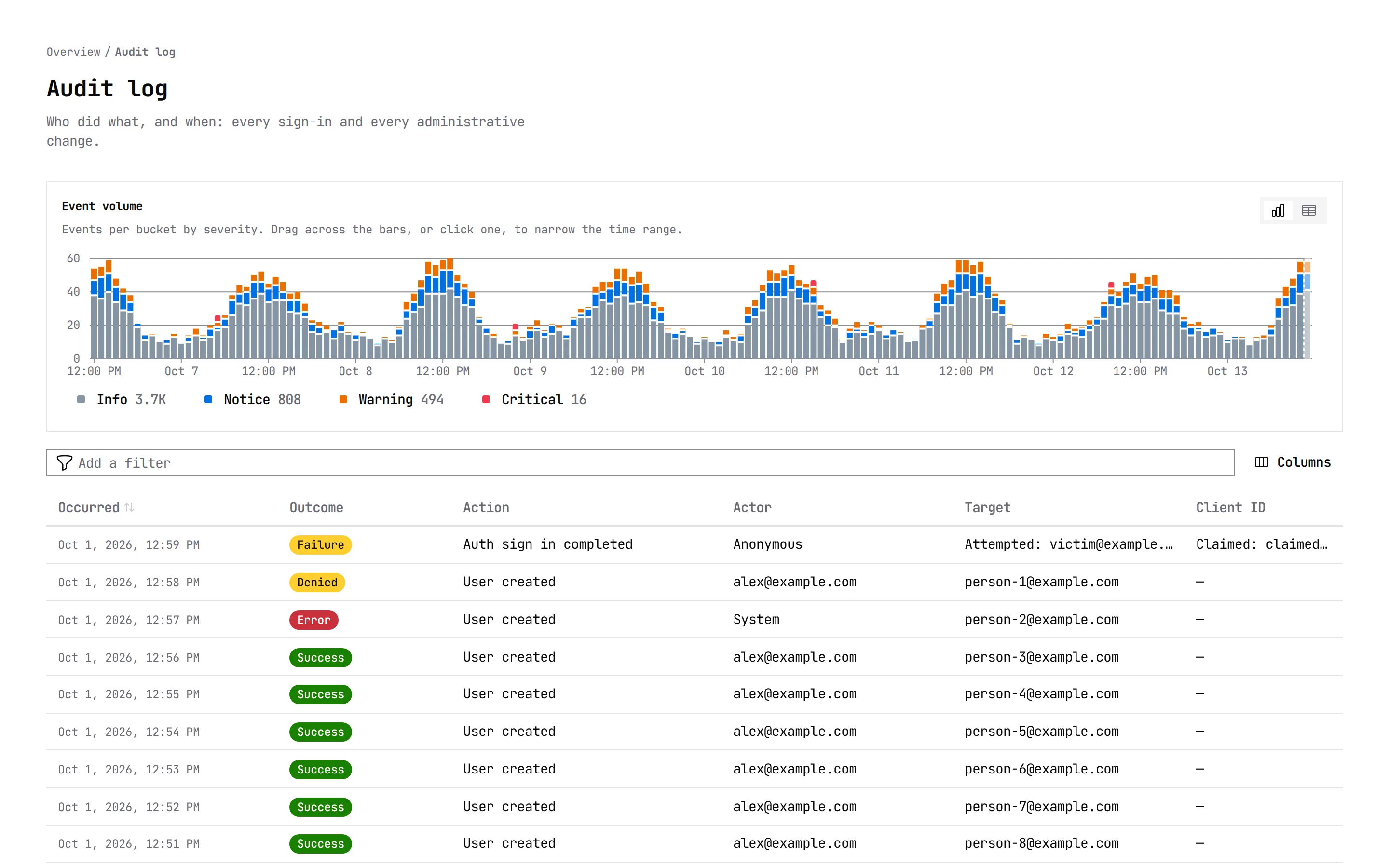
| Audit log | The organization's audit events in a table, filtered by action, category, outcome, severity, reason, actor, target, IP address or network, client, session, request ID or trace ID. Columns include what kind of software sent each request (a browser, an AI agent, a crawler, automation or a library), and, on sign-ins, the network zones the address fell in, why a second factor was spared and which second-factor rules applied. Above the table, a chart of event volume by severity. Drag across the bars, or click one, to narrow the range. See Audit Log. |
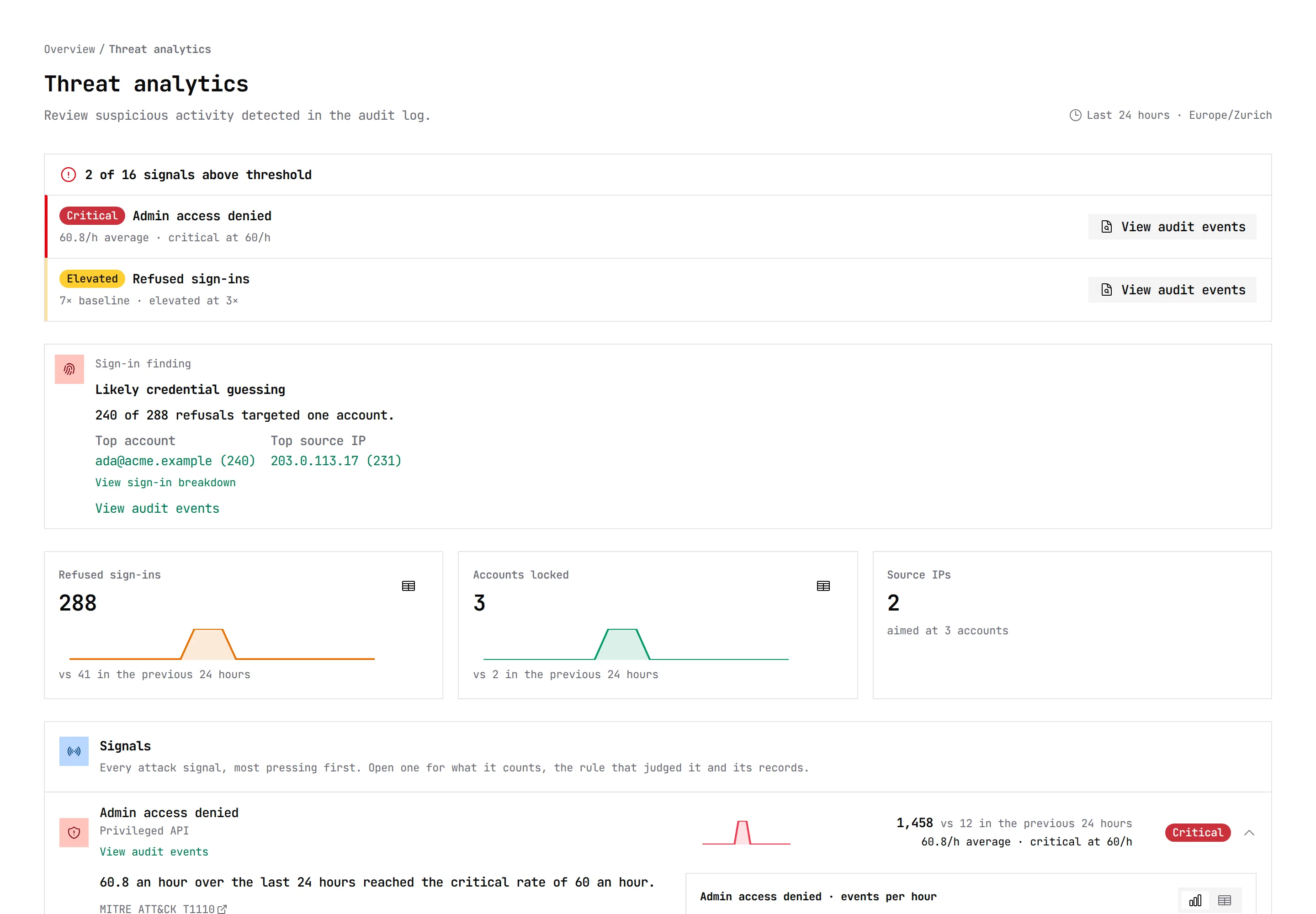
| Threats | Attack signals counted from the audit log, judged against recommended thresholds, and the shape of the period's refused sign-ins. See Threat analytics. |
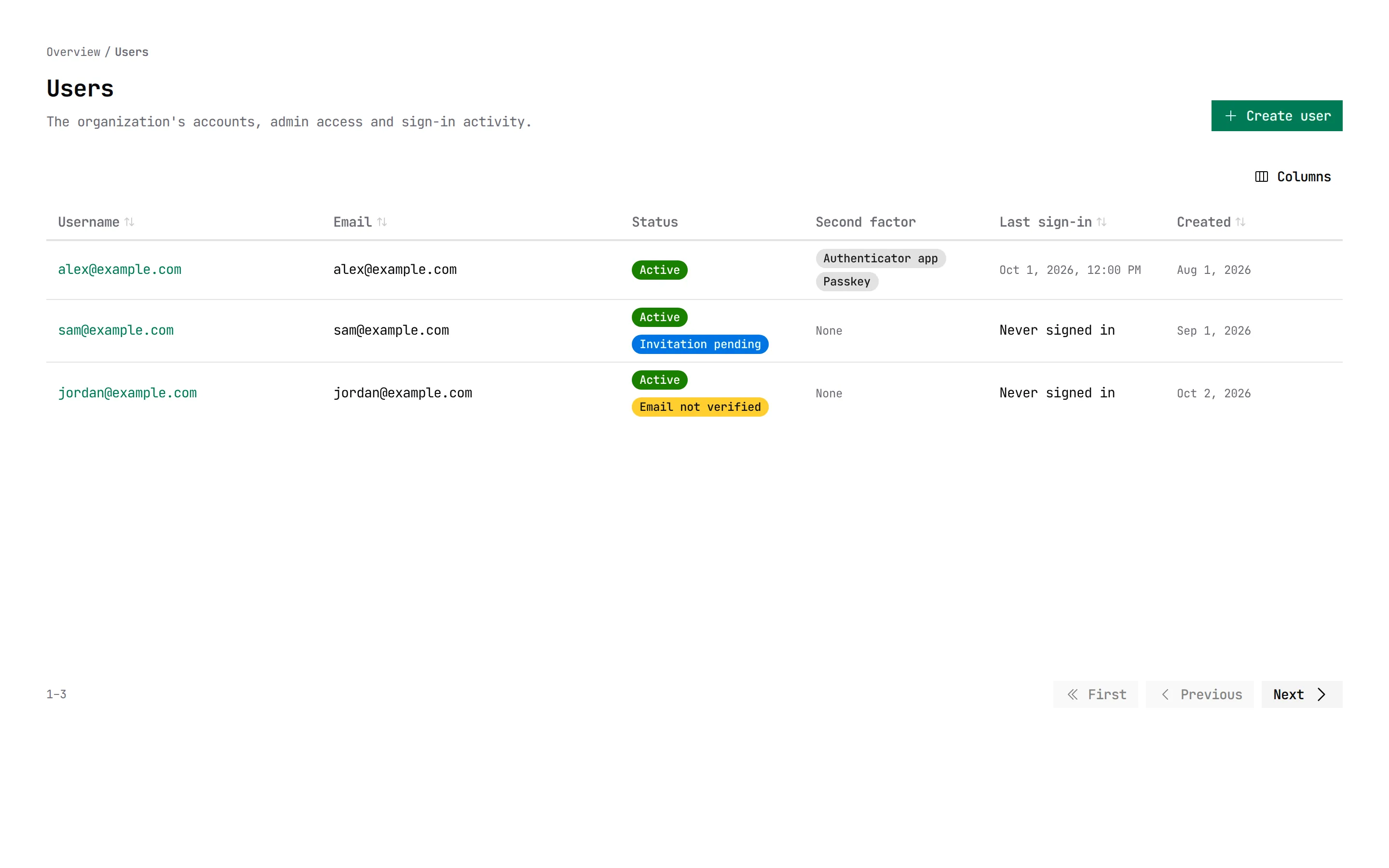
| Users | The organization's accounts. Search by username, name or email, and filter by status, whether locked now, second factor, creation date and last sign-in. Columns include status (an invited user shows Invitation pending), last sign-in, failed attempts and lock deadline. Create user opens a form: email, name, username, and either Send an invitation, which emails a link to choose a password, or Set a password, which you pass on yourself. An address you know is theirs can be marked verified. |
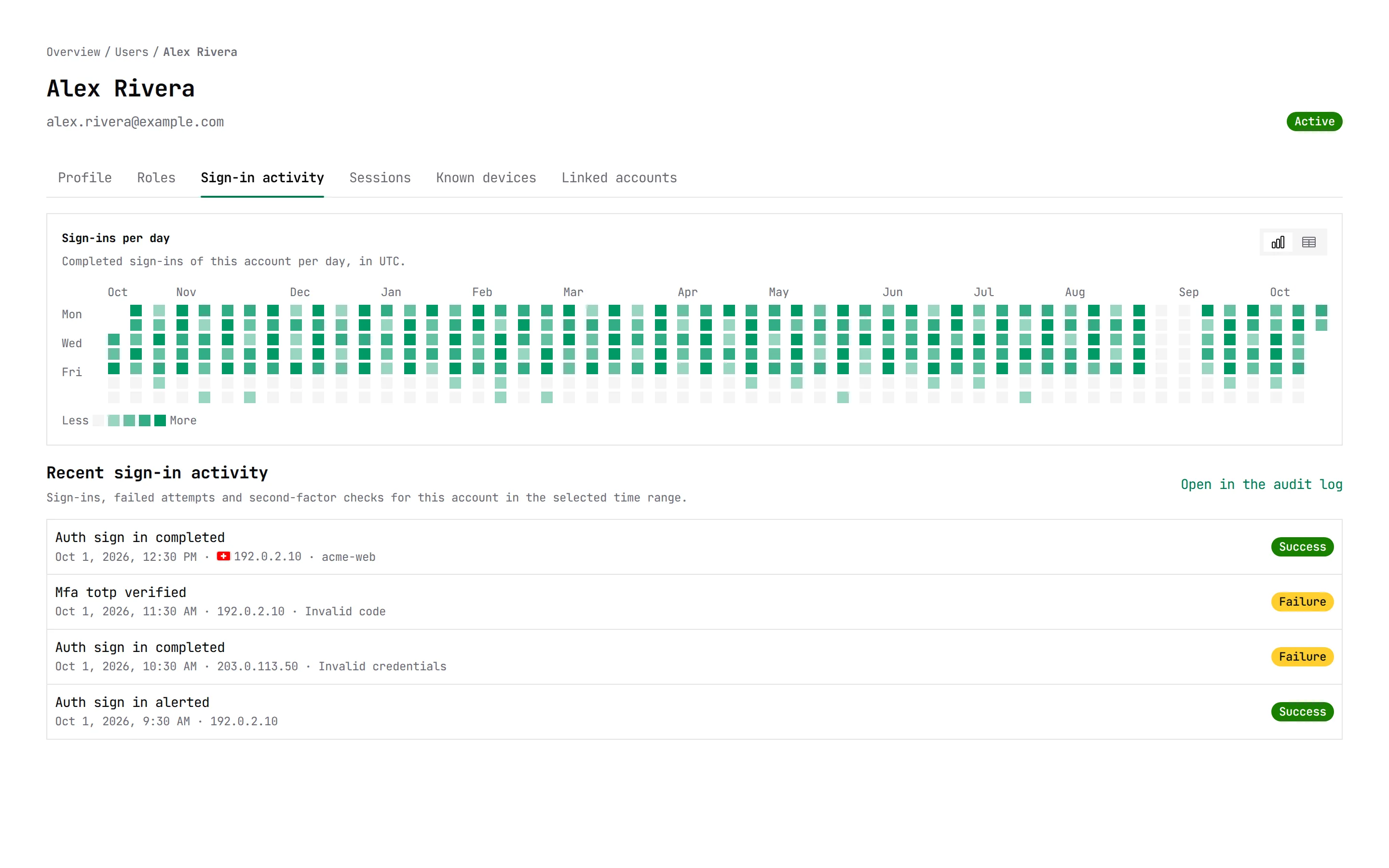
| User details | One user, in six tabs. Profile: account fields, status and its note, sign-in and lock state, and attributes. Here the user is suspended (until a time or indefinitely), blocked, reactivated or unlocked, emailed a password reset link or required to set a new password at their next sign-in, and deleted; a user still waiting on an invitation can be sent a new one. Roles: the roles the user holds in this organization, what each allows, and Grant roles and Revoke for the roles you may change (see Granting roles). Sign-in activity: a calendar of sign-ins per day over the last year, and the recent sign-in, failure and second-factor records. Sessions: the active sessions, with End session for one and Sign out everywhere for all, and the sessions that ended in the time range and why. Known devices: the browsers and networks the user signed in from recently, which new-sign-in alerts compare against, with Forget for one or every browser remembered for the second factor. Linked accounts: the accounts at the organization's identity providers that sign in as this user, when each was linked, and whether the link still signs in. |
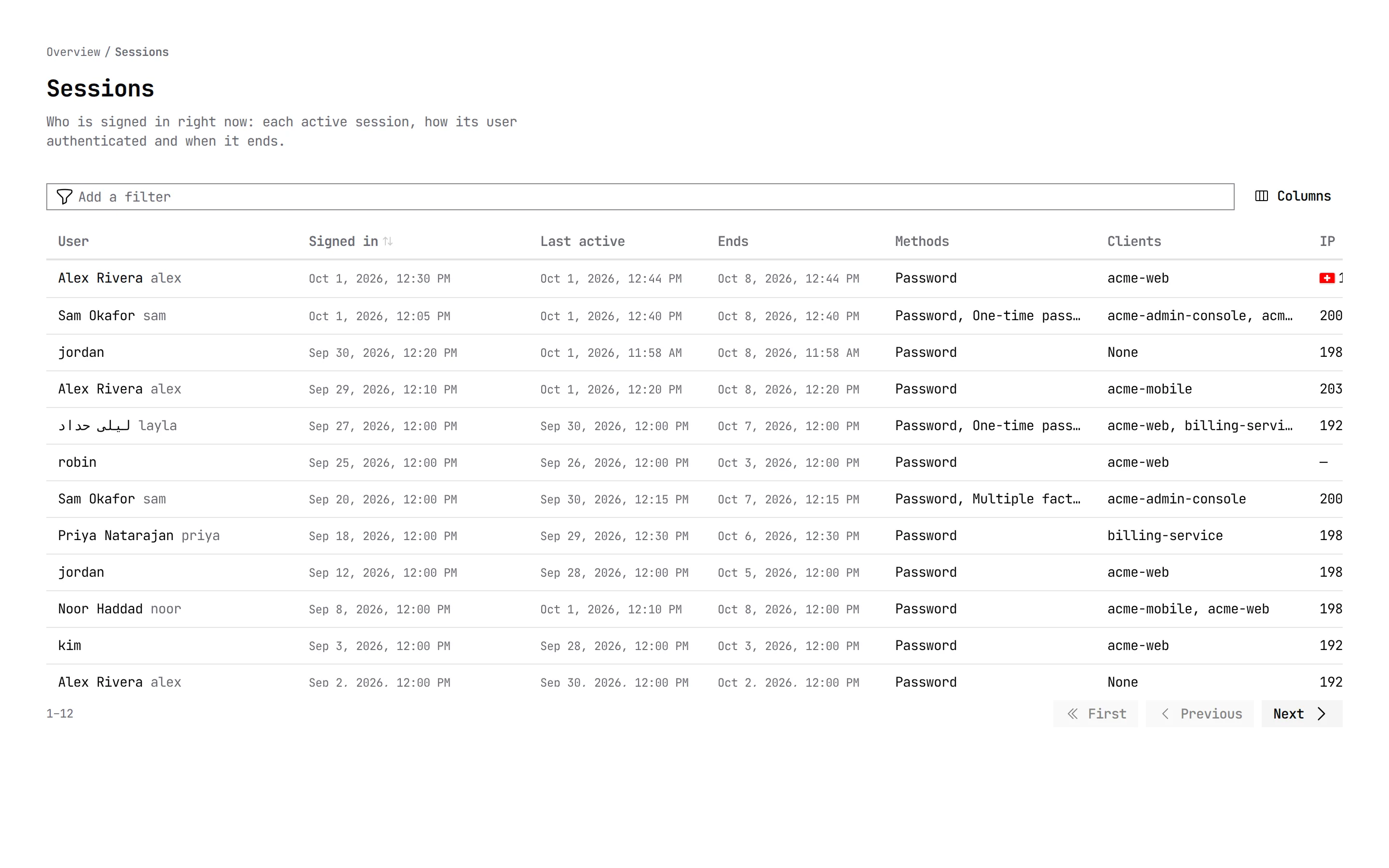
| Sessions | Who is signed in now: each active session's user, when it started and was last active, when it ends, how the user authenticated, which clients it reached, and its IP address and user agent. Filter by user or client. Sessions are ended from the user's page. |
| The relay the organization's email goes through, its own or the deployment's, with its host, connection security, whether credentials are set and the sender. Read-only, because relays are set in the deployment (see Email). Send test email sends a message to your own account's address and shows what the relay answered, stage by stage. | |
| Problems | The resources an operator declared for the organization and could not apply: each one's kind, namespace, reason and message, since when it fails, and the runbook for its reason. A resource leaves the list once it is ready. Platform staff also get a Platform tab with the resources an operator could not place in an organization. |
| Troubleshooting | Paste the reference ID a user saw on an error page to see what the server recorded about that request in the last 90 days: what happened, why, which account and application, and every audit record it left. |
| Organizations | Platform staff only: every organization the server hosts, searchable by name or slug, with its issuer. Open one to administer it in its own pages. |
Suspending, blocking, reactivating and unlocking a user, requiring a new password, deleting a user, forgetting remembered browsers, ending sessions, and granting and revoking a role ask for a reason, which is recorded on the audit event. Ending one session signs the browser out of it, retires the refresh tokens it issued, and tells the applications it reached over back-channel logout. All of them but ending one session need a recent sign-in. A change shows only once the server has applied it. Long dialogs scroll inside the window.
Creating a user with an invitation needs an email relay; without one the form says so and offers to set a password instead. The invitation is written in the language chosen in the form and names the administrator who sent it. A user an identity provider created has no password but is not waiting on an invitation, so none is offered.
An organization the administrator cannot reach, or one that does not exist, shows a refusal page instead of the dashboard, with a link back to their own organization. A failed request shows its request ID, and its trace ID when the server records traces, to hand to whoever runs the server.
Threat analytics
The Threats page reads the audit log as sixteen signals, each a fixed set of actions and outcomes counted over the page's time range. Each tile shows the count, a comparison with the equal period before, a trend line colored by its status, the threshold it is judged by and what to do about it, and links to the audit log filtered to exactly the records it counted. Nothing on the page changes anything.
| Signal | Counts | Elevated from | Critical from |
|---|---|---|---|
| Refused sign-ins | auth.sign_in.completed, refused | 60/h | 600/h |
| Refused sign-ins in spared zones | auth.sign_in.completed, refused, from a network zone where the policy spares the second factor | 6/h | 60/h |
| Accounts locked | auth.account.locked | 3/h | 20/h |
| Sign-in throttles | auth. | 10/h | 100/h |
| Recovery refusals | auth., auth., refused | 20/h | 200/h |
| Registration refusals | auth., refused | 20/h | 200/h |
| Second-factor failures | mfa.totp.verified, mfa.passkey.verified, mfa., refused | 20/h | 100/h |
| Second factors locked | mfa.factor.locked | 2/h | 10/h |
| Refused grants | oauth.token.issued, oauth.token.refreshed, refused | 30/h | 300/h |
| Refused access tokens | oauth.token.presented | 30/h | 300/h |
| Client authentication failures | oauth. | 10/h | 100/h |
| Refused authorization requests | oauth., refused | 30/h | 300/h |
| Device code guesses | oauth. | 10/h | 60/h |
| Suspicious clients | client.name.suspicious, client. | 5/h | 30/h |
| Admin access denied | admin.access.denied | 10/h | 60/h |
| Requests screened out | http.request.screened, http.header.repeated | 60/h | 600/h |
A signal is quiet with nothing counted and normal below its thresholds. It is elevated or critical when its rate over the whole range reaches that rate, so a threshold means the same over 15 minutes and over a month. It is also elevated when the count is at least two or three times the period before's (the ratio depends on the signal) once it reaches a small floor. The thresholds are built in, taken from what NIST SP 800-63B-4, the OAuth RFCs and the major identity providers publish; there is no per-organization setting yet. A banner at the top counts the elevated and critical signals.
Beside the signals, Sign-in attack shape reads the period's refused password sign-ins: how many, how many named no account, from how many addresses, against how many accounts. Fewer than 20 is too few to read. Otherwise it names the pattern, with advice: credential cracking (10 or more failures per account), password spraying (many accounts, or mostly unknown identifiers, from fewer than 10 addresses), credential stuffing (the same from 10 or more addresses), or no single shape. Behind the refused sign-ins ranks the addresses, accounts, clients and network zones they came from or were aimed at, most first, over at most the last 31 days.
The counts see what the audit level records. Every refusal is recorded whatever the level, but an action excluded by pattern blinds the signal that counts it, and refusals the edge coalesces count once per summary. Each card loads on its own. Answers are cached per organization and window, longer for longer windows, so every administrator watching the page shares one computation.
The page needs threats.read; the rankings need audit.read, and the address ranking
users.pii.read too, so a reader without them still sees the rest. The refused sign-ins
in spared zones count only where the organization's policy spares the second factor in a
zone, where a guessed password is a whole sign-in. Every other signal is also exported as
Prometheus metrics with alert rules.
Who may use it
The server decides every permission. The dashboard hides or explains what the server
would refuse. Each admin operation needs an OAuth scope, which the
{slug}-admin-console client registers, and a permission, which the user's roles grant.
The server reads the user's roles from its database on every call. See
Admin API & Users for the roles.
| Screen or action | Permission |
|---|---|
| Open an organization, read its email relay and identity providers | orgs.read |
| Send a test email | orgs.write |
| Clients and client details | clients.read |
| Client activity, the audit volume chart, the sign-in calendar, the overview's sign-in activity, users and clients, and its proxy advice | insights.read |
| Audit log, a user's sign-in activity, Troubleshooting, the rankings on the threat page | audit.read |
| Threats, and the signals on the overview's attention list | threats.read |
| Problems | orgs.read |
| Problems of resources in no organization, the Organizations page | orgs.read, from a platform role |
| Users, user details and linked accounts | users.read |
| Search users by name or email; see names, addresses, user agents and linked subjects | users.pii.read |
| Create a user, send an invitation | users.create |
| Suspend, block, reactivate and unlock a user | users.lifecycle, and a recent sign-in |
| Email a password reset link | users.credentials |
| Require a new password at the next sign-in | users.credentials, and a recent sign-in |
| Delete a user | users.delete, and a recent sign-in |
| A user's roles | roles.read |
| Grant and revoke roles | roles.assign |
| Sessions, a user's sessions and known devices | sessions.read |
| End one or all of a user's sessions | sessions.revoke |
| Forget a user's remembered browsers | sessions.revoke, and a recent sign-in |
An administrator acts in their own organization. A main-org user with a platform role
(platform-viewer, platform-auditor or platform-owner) opens any organization's
pages from the organization switcher in the top bar, from the Organizations page or
by the slug in the address, and signs in only once.
The first administrator is a main-org user named in auth.admin.subjects, who is granted
platform-owner, which holds every permission. From there, roles are granted on each
user's Roles tab. A platform owner can grant a tenant organization's own user
org-owner there, and that owner then grants roles in their organization. See
The first administrator.
Granting roles
The Grant roles dialog groups roles by where they count, this organization or the
platform, marks each with its level (Read, Support or Administer), and marks as
Privileged every role that holds more than orgs.read, clients.read and
insights.read. Several roles can be granted at once under one reason. It offers only
the roles the server says you may change:
- Only
org-ownerandplatform-ownerholdroles.assign. - You grant or revoke a role only when your own roles cover everything it grants, so an
org-ownerhands out every organization role, the owner role included, and no platform role. - Nobody changes their own roles.
- Platform roles are granted only in the main organization.
- Revoking the organization's last active account that can grant roles is refused, and nothing changes.
The user is emailed when a role they hold is granted or revoked, through the organization's relay when it has one (see Email). A role counts from the user's next request.
Still planned
| Planned | Tracked in |
|---|---|
| A branded quick sign-in page for each organization | #560 |
| Privileged changes to review, such as roles granted and accounts suspended, on the overview | #574 |
| New audit events as they arrive | #580 |
| Editing a user's profile and attributes | #595 |
| Setting a user's password and managing their second factors | #599, #588 |
| A user's roles in every organization they may see, and granting roles to main-org staff in another organization | #600, #543 |
| Who holds access to the organization | #601, #332 |
| Further bounds on owner-tier grants | #542 |
| Monitor and helpdesk-admin roles | #635 |
| Per-application access for developers, read-only | #623, #625 |
| Main-org staff acting in another organization under that organization's sign-in requirements | #563 |
| Masking personal data from roles that may not see it | #564 |
| Proof-bound refresh tokens, capped by the sign-in session | #602 |
| A second factor for every admin console sign-in | #951 |
| Per-administrator rate limits | #527 |
| Platform alerts about the deployment itself | #603, #604 |
| More languages | #539 |
| An operator guide to granting dashboard access and branding it | #605 |
Deleting a user needs users.delete and a recent sign-in, in the dashboard as in the API.
The roadmap shows the same work.
Admin API only
| Task | Use |
|---|---|
| Edit users, set a password, mark an existing user's address verified | The admin API. Setting a password needs a recent user sign-in, so it needs a token from {slug}-admin-console, not {slug}-admin-m2m. |
| Invite and accept broker memberships, and claim and verify email domains | The admin API's / and /, or the operator. See Identity Broker. |
| Create, rename and delete organizations, and set their second-factor policy and network zones | The admin API's /v1/admin/orgs, or the gRPC AdminService. See Organizations. |
| Register and change clients and identity providers | The gRPC AdminService, nauthera-cli, the operator or, for clients, dynamic registration. |
| Configure an organization's email relay | The deployment's configuration or the Helm chart. See Email. |
| Follow the audit log as events arrive | GET /. See Audit Log. |